> ## Documentation Index
> Fetch the complete documentation index at: https://docs.doczilla.app/llms.txt
> Use this file to discover all available pages before exploring further.
# Element screenshots
> Take a screenshot of a specific element on the page, great for automating documentation steps of your product.
Automate the creation of product screenshots effortlessly with the `element` option for screenshots. See [Screenshot options](/api-reference/screenshot-options) for all available screenshot options.
## Example
## Output
 ## Optimise the output
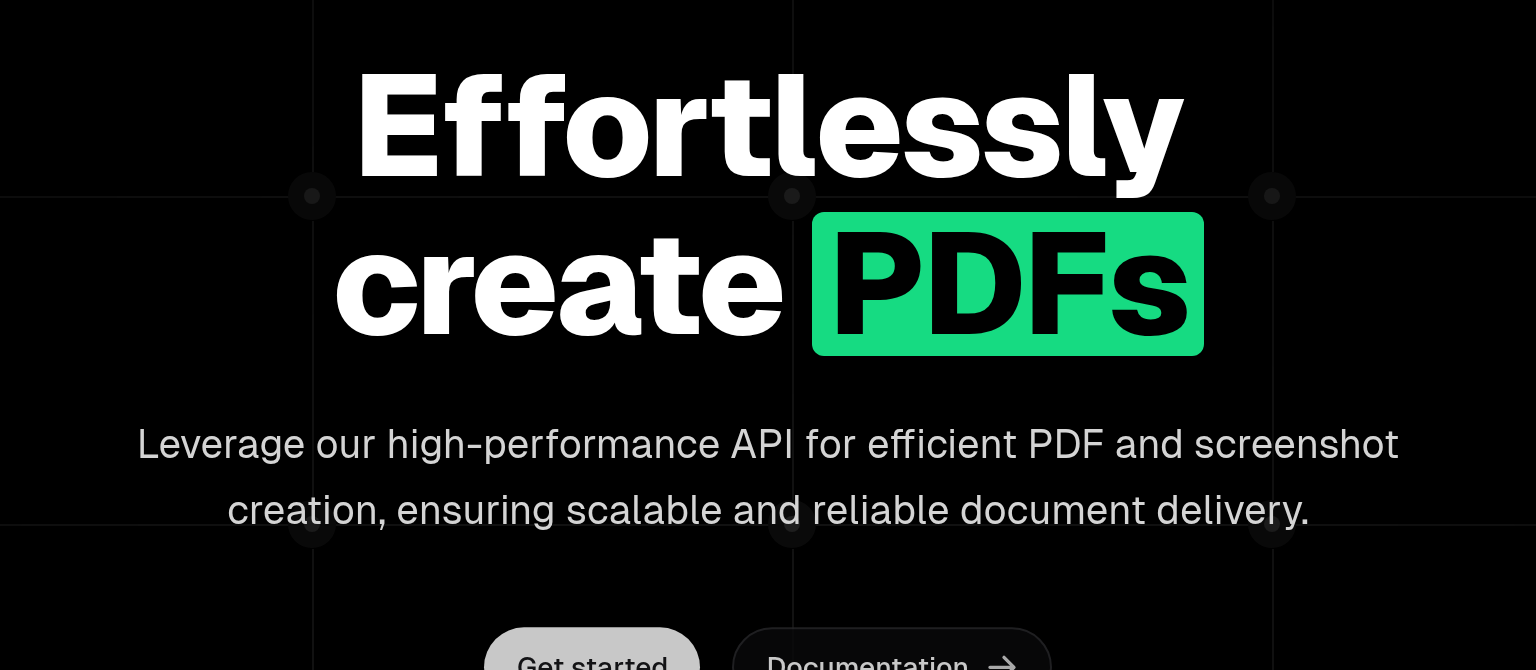
To optimize the output with for example more paddings around the element, the `viewport` option in combination with the `overlay` option can be used.
## Optimise the output
To optimize the output with for example more paddings around the element, the `viewport` option in combination with the `overlay` option can be used.
Providing the `viewport` option will make sure the screenshot is taken with that viewport, afterwards that viewport is used as
size to add the `background` to. We are setting `margin` to `0` as otherwise the default value will increase the viewport of the background.
## Optimised output